Add a VCS Account
VCS accounts are managed from the JoyDX settings menu which can be reached by clicking the Cog menu option located in the bottom left of the window and selecting External Services.
Initiate adding an account by clicking the Add an account button

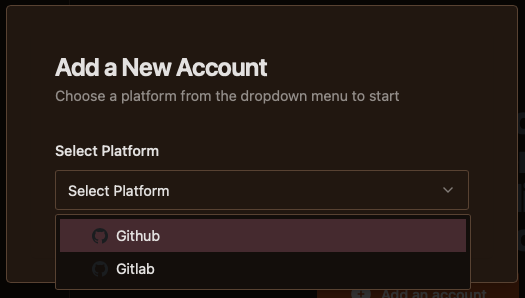
From the popup window, select the platform. Procedure for connecting platforms will differ slightly
- GithubClick the 'Login with SSO' button and follow instructions from within the browser window that will open
- GitlabEnter your Personal Access Token (PAT) in the text box provided and click connect
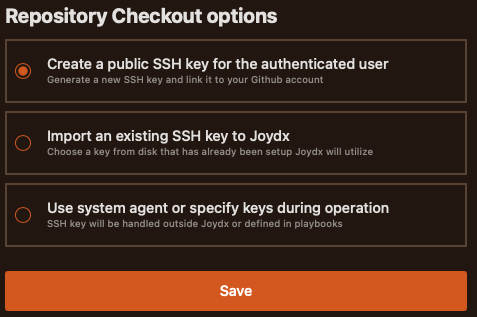
Once successfully authenticated with your platform of choice, JoyDX will present you with a choice of how you would like to handle repository authentication
- Create a new SSH key for the authenticated userJoyDX will generate an ed25519 format SSH key and associate it with your account via the API, using your newly created vault for storage
- Import an existing SSH key to JoydxPresents a a file picker to choose the private key from your file system. The public key will be derived from the selected key, associated with your account and be stored within the vault for later use
- Use system agent or specify keys during operationJoyDX will not attempt to handle keys for you. It will be your responsibility to provide keys through a system ssh-agent or using the the `private_key_path` configuration option