Create an Environment
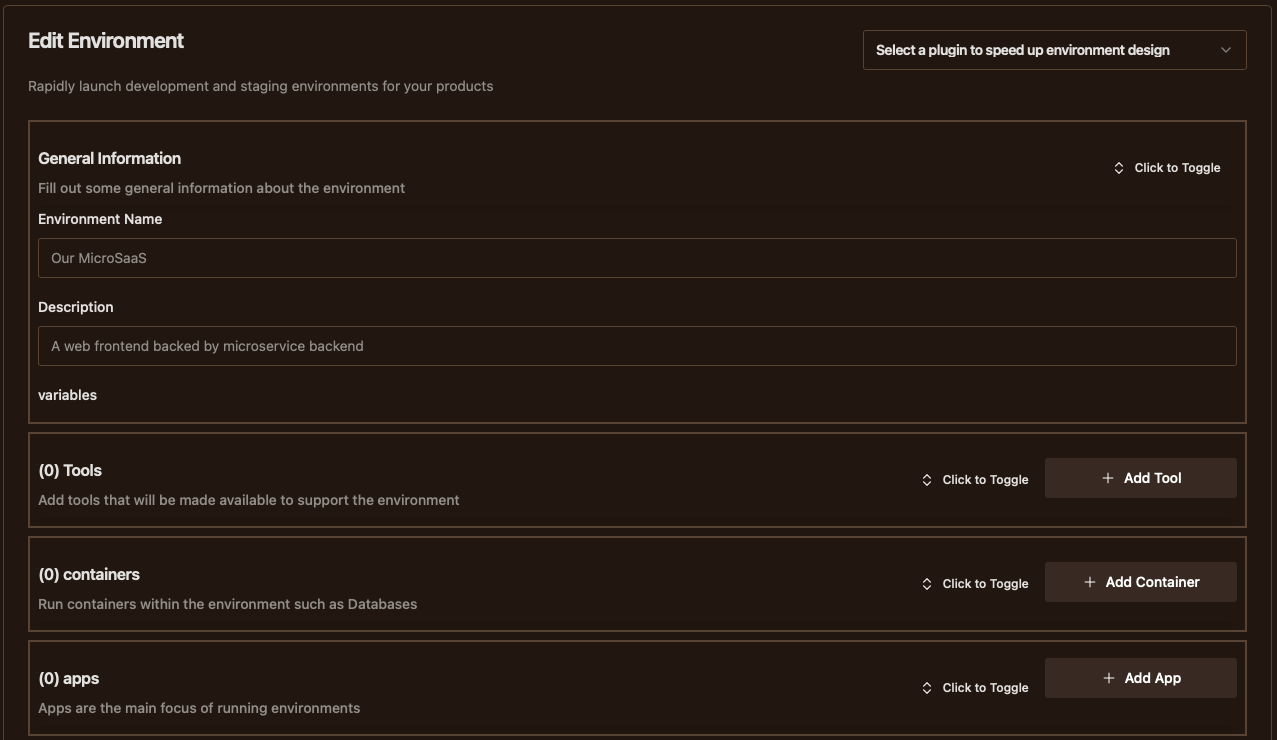
General Information
Environments are the main "active" component of JoyDX to simplify collaboration initiated via a profile.
You can choose to either create them for local use from within the environments screen or for the purposes of collaboration from within the organisation manager.
Each of the four sections within the interface are collapsible by clicking within the title space
- Environment NameA unique identifier for the environment
- DescriptionSummary information to provide extra context beyond the name
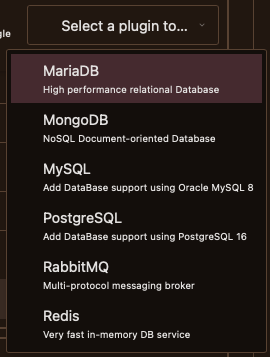
For your convenience, located in the top right corner, there is a "plugin" dropdown menu that allows you to quickly run macros affecting the environment definition.
At present, this is limited to adding common storage services in container form. In the near future, this will be customisable via the organisation manager; in the meantime, if there is a service you would like to add not included, please get in contact
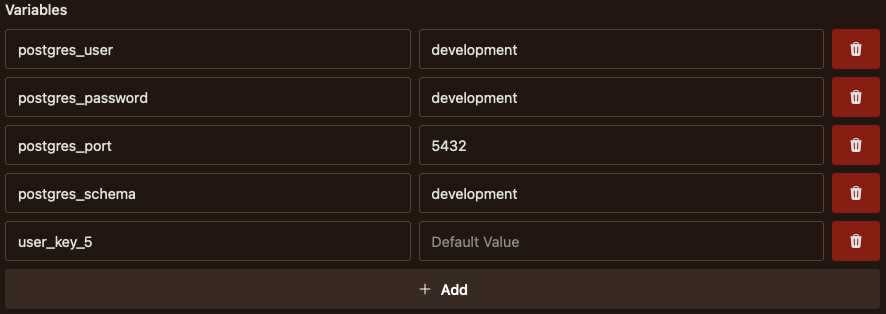
To add support for runtime customisable variables that get made available to the environment and template service, you can define as many variables in key / default value as you want within the meta section. If you attempt to use a duplicate key, it will reset and show you a toast message.
For any tools needed within the environment, you should exhaustively define them by clicking the "Add Tool button", choosing from the select menu, and optionally restrict version with the release dropdown / version constraint.

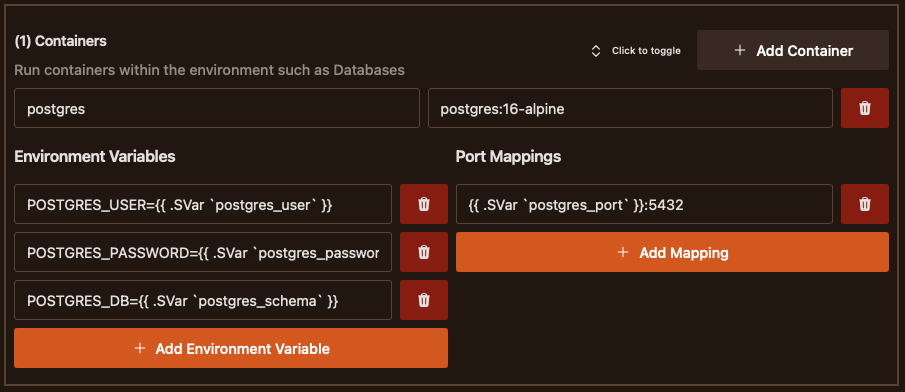
Containers
Containers are the recommended approach to including throwaway services where you want to throwaway state between executions
- Container NameIdentifier for the container
- Container ImageContainer image and tag, optionally prefixed with the registry address. e.g. docker.io/postgres:16-alpine
Apps
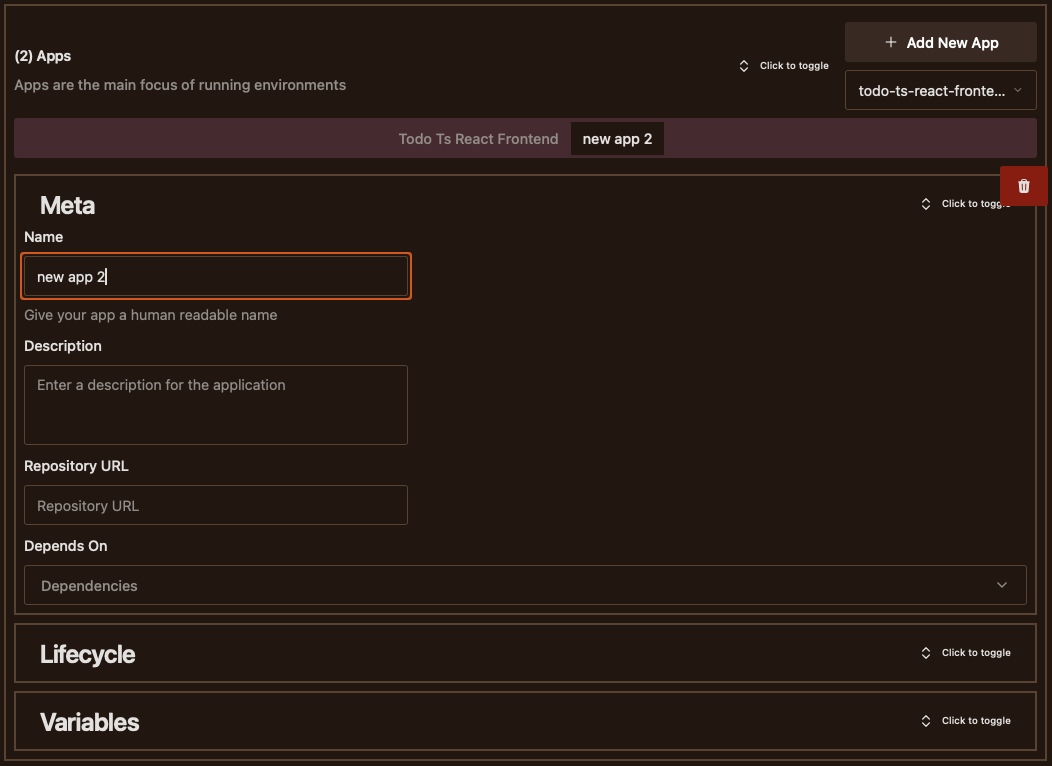
Apps are software projects where you have access to the source code. If you are already tracking apps and have created a config profile, you can quickly add an app to your environment using the dropdown menu. When you add an existing app or add a new app, you can between their configurations using the tabs.
Due to the number of options for configuring an app, configuration is broken down in to further sections
- NameIdentifier for the application
- DescriptionOptionally include extra summary information about the application for better context
- Repository URLWeb address of the application source
- Depends OnA multi-select drop-down that will allow selection of already defined containers / apps to control startup order
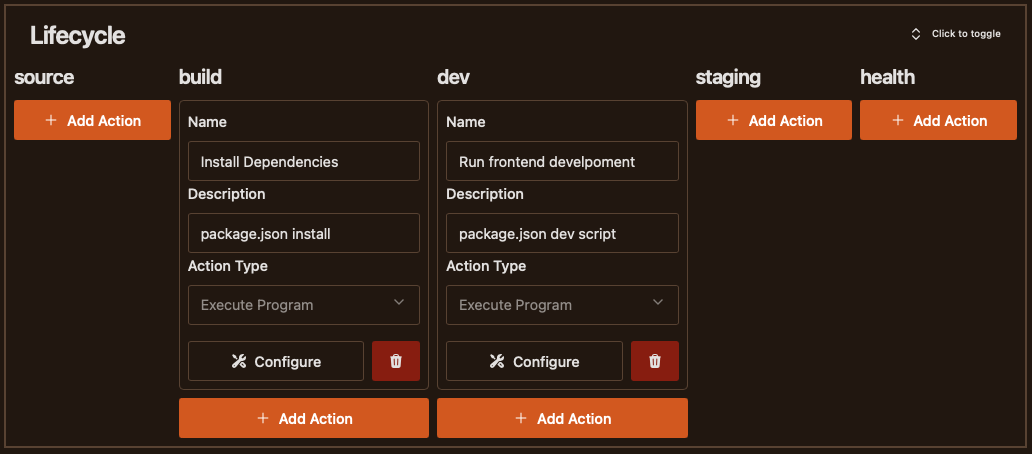
Apps have a lifecycle consisting of 5 separate stages that consist of task engine actions.
- SourcingInstructions on making the source code available. If left undefined, JoyDX will consider a GIT clone of the repository URL
- BuildProcedures used to make the application ready for launch such as compiling the app or installing dependencies
- DevelopmentRunning the application in a mode suitable for modification or debugging
- StagingRunning the application in a mode representative of production suitable for testing and quality assurance
- HealthOperations to run intermittently when used within environments to check that the application is in a working state and not erroring
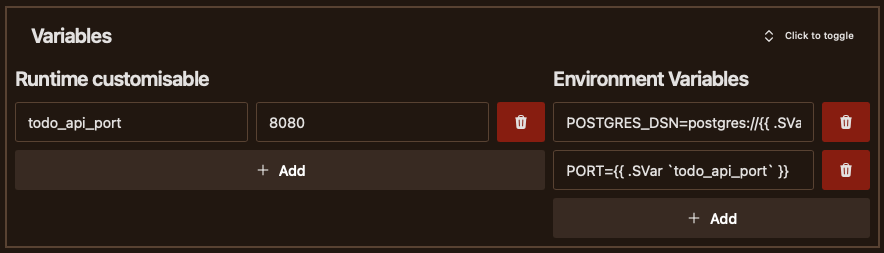
Within the variables section, you can add further runtime customisable variables and also environment variables. There is a minor difference between the two
- Runtime CustomisableMade available to the environment but not used by default
- Environment VariablesIncluded in the execution stage to configure execution